

The ability to Select and Defer is an option available in two totally different scenarios. You can select and defer individual Fee and Expense transactions, and you can Select and Defer a Matter from Prebilling/Billing.
1. Selecting/Deferring Fee and Expense Transactions
When you enter a new Matter in Orion, there is a setting giving you the option of flagging newly saved Fee transactions and Expense transactions as either selected for billing or deferred from billing. This option is accessed on the Billing Options Tab as shown in the below illustration:

This setting controls the Bill Status of a transaction only upon the initial saving of the transaction. The setting applies to individual Fee transactions or Expense transactions only and has nothing to do with the Bill Status of the Matter. If you choose Selected, all transactions entered are automatically saved as Selected for billing. If you choose Deferred, all transactions are automatically saved as Deferred from billing. If you decide at a later date to change the settings in the Matter file, transactions entered prior to this change are not impacted.
You may change the Bill Status of individual transactions through the Bill Preparation program. This is the only place you can change the Bill Status of a Fee or Expense transaction. Selecting or deferring individual transactions has no effect on whether or not a Prebill/Bill can be generated.
2. Selecting and Deferring Matters for Prebill/Bill Printing
When a Matter is first saved in the system, the Bill Status of the Matter is set to Selected and will remain as Selected unless you specifically Defer the Matter or until the Matter is Closed (see below). The Bill Status of a Matter can be viewed in four different places in the System: Matter Status, File Maintenance Manager – Matters Grid, File Maintenance Matter Manager Grid and a window after the SELECT AND DEFER MATTERS WITHIN THE SELECTION CRITERIA Button in the Generate Prebills or Print Invoices Programs. The Bill Status of a Matter does not appear anywhere within the Matter record itself.
If a Matter is Deferred from Prebilling/Billing, nothing will print regardless of the Bill Status of the individual Fee transactions and Expense transactions. For example, if all of your Fee transactions and Expense transactions are set to Selected for billing but the Matter is Deferred from billing, a Prebill/Bill will not print. Deferring or Selecting a Matter for billing does not change the Bill Status of the Fee transactions and Expense transactions on that Matter. Also, once you have Deferred a Matter from billing, no Prebill/Bill will print until you re-select it for billing.
There are four places an User can change the Bill Status of a Matter from Selected/Deferred.
a. A Matter can be Deferred from Billing through the grid in the Prebill Manager if a record exists in the grid for the specific Client-Matter. Highlight the record, right click and choose Defer Selected from Billing.

This will change the Bill Status of the Matter to Deferred. Note that this is not the same as the “On Hold” option which is for on screen reference purposes only and is not looked at by the program when Prebills/Bills are run.
b. A Matter can be Selected/Deferred from within the Look-Up window displayed when you click the SELECT AND DEFER MATTERS WITHIN THE SELECTION CRITERIA Button in both the Create Prebills and Print Invoices windows. When this button is clicked, all Matters within the selection criteria will be displayed. To Defer a Matter from billing, remove the check mark from the Selected column. To Select a Matter for billing, place a check mark in the Selected column.

c. A Matter can be Selected/Deferred from Prebilling/Billing from within the File Maintenance Manager, Matters Grid. To check the current Billing Status of a Matter or Matters, right click and choose Select Grid Fields. Drag the field named Bill Status into the grid and then click the REFRESH Button.

To change the Bill Status from within this grid, highlight one or more records, right click, choose Edit Selected and then choose the Bill Status change option. Note that any Matter where the Bill Status reads Invoiced will remain unchanged.
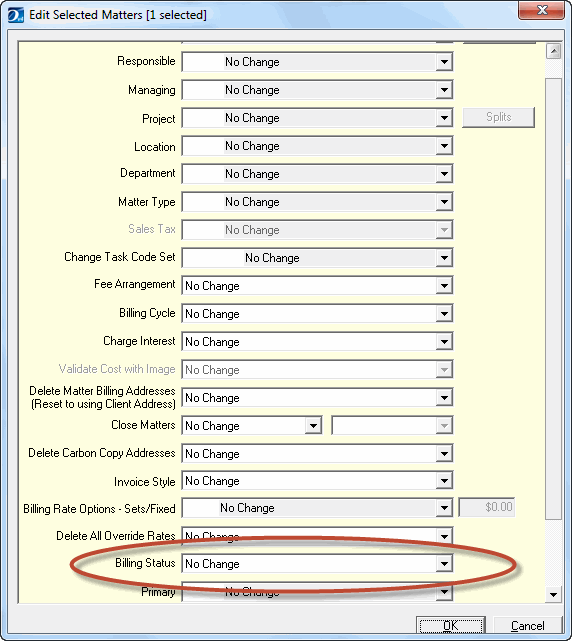
d. A Matter can be Selected/Deferred from Prebilling/Billing from within the File Maintenance Matter Manager. To check the current Billing Status of a Matter or Matters, right click and choose Select Grid Fields. Drag the field named Bill Status into the grid and then click the REFRESH Button. To change the Bill Status from within this grid, highlight one or more records, right click, choose Edit Selected and then choose the Bill Status change option. Note that any Matter where the Bill Status reads Invoiced will remain unchanged.
Automatic Change of Bill Status when Closing a Matter
When you close a Matter in Orion by going into the Matter record and entering a date in the Date Closed field, you are given the option of having the program check for any WIP and/or AR and also to check for Trust or Retainer Balances for the Matter. If you choose to have the program check for this and none is found, the Matter is saved with the Closed date and automatically Deferred from Prebilling/Billing. If any WIP, AR, and/or Trust or Retainer Balances are found, you will be notified and given the option to continue closing the Matter. If you choose to continue with closing the Matter, no change is made to the Bill Status. If you choose not to have the program check for any WIP, AR, Trust Balances and/or Retainer Balances, the Matter is closed and there is no change made to the Bill Status.
If you re-open a Matter (remove the date from the Closed Date field), the Matter will be saved as “open” and the Bill Status will automatically be changed to Selected.
In short, the only time the system will defer a Matter from Prebilling/Billing is if the Matter is closed AND no WIP, AR, Trust or Retainer Balance was found. If you do not choose to have the system check for WP, AR, Trust or Retainer Balance the Bill Status of the Matter will not be changed by the system.